Quotes tab
The Quotes tab is the area where suppliers maintain and manage the Requested Quotes they have been asked to provide. The Requested Quotes will have been passed to Gateway from MRI Evolution.
Once completed in Gateway the details entered will be passed back to MRI Evolution and saved against the originating Quote record.
It is possible that
MRI Evolution
In order to appear in the Gateway, a Quote record originates from a Requested Quote record in MRI Evolution.
Open or create a Requested Quote record in MRI Evolution:
-
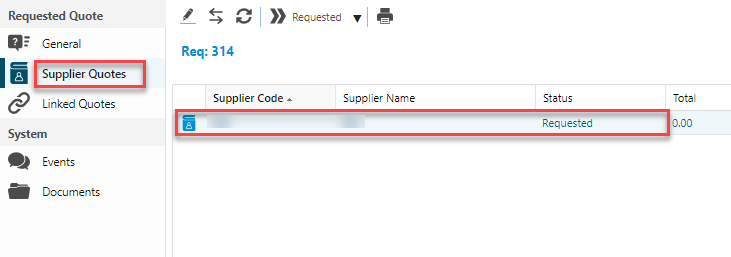
Assign the Supplier associated with the Contractor Gateway in the Supplier Quotes sub navigation
-
Click on the Supplier record and click the Requested toolbar button to pass the Quote to the Gateway
-
The Requested Quote should appear soon after in the Gateway Quotes grid
Quotes Grid
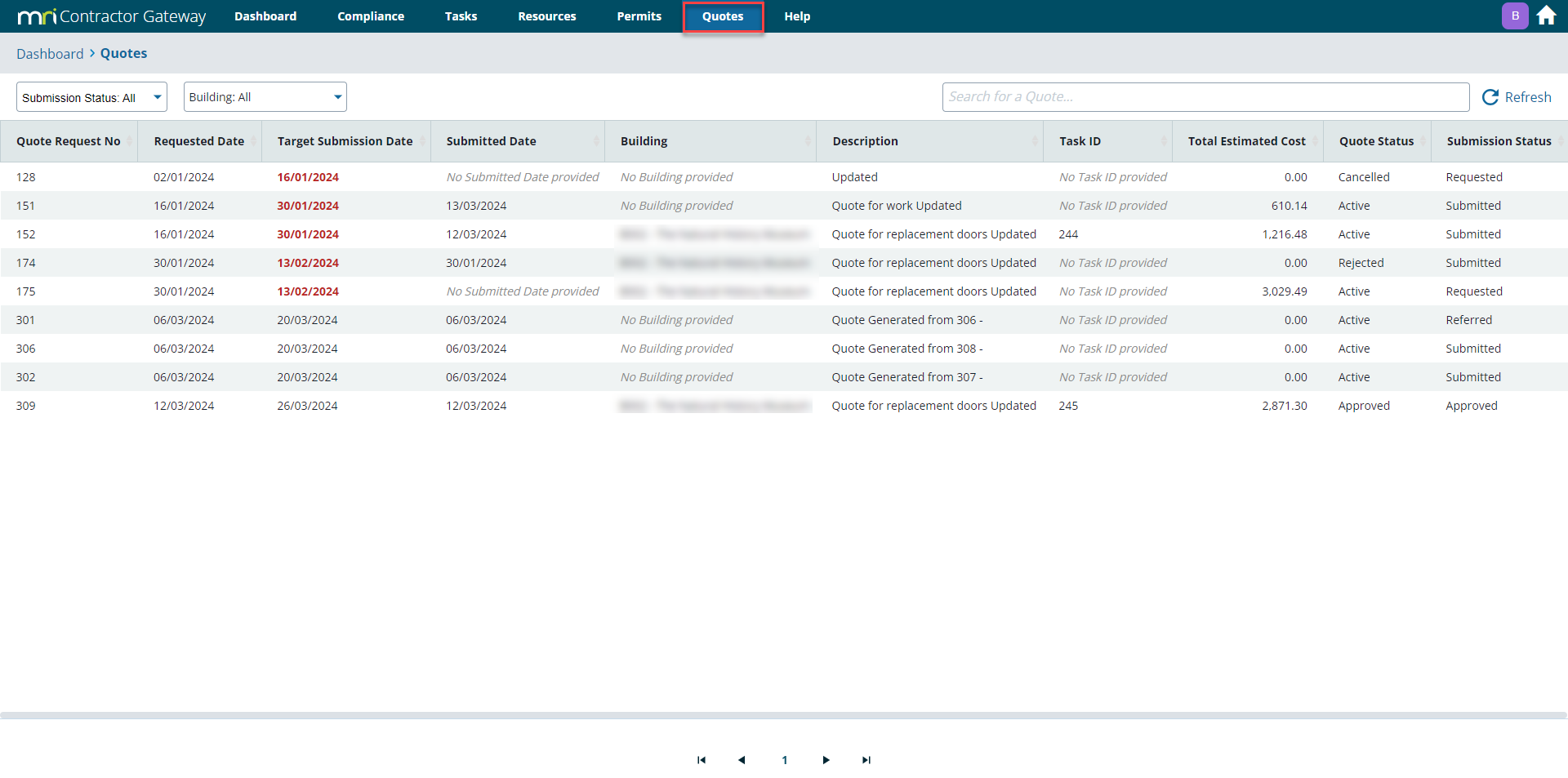
The Quotes grid contains the Requested Quotes records that have been passed to Gateway from MRI Evolution.
There are two filter drop downs for the grid - Submission Status and Building. Selecting values in the drop downs will restrict the records displayed in the grid to only those records matching the selected value(s).
A Search field allows users to enter 'fuzzy' searches to restrict the records displayed in the grid to only those records matching the search criteria. The grid is filtered as the search criteria is typed.
Certain values of records in the grid are coloured red and made bold in order to highlight an important event for the Quote that may require an action, such as the Target Submission Date was missed, the Quote has been Rejected in MRI Evolution or the Quote has been Returned from MRI Evolution.
Quote Details
Clicking on a Quote record in the grid will open the Quote Details page:
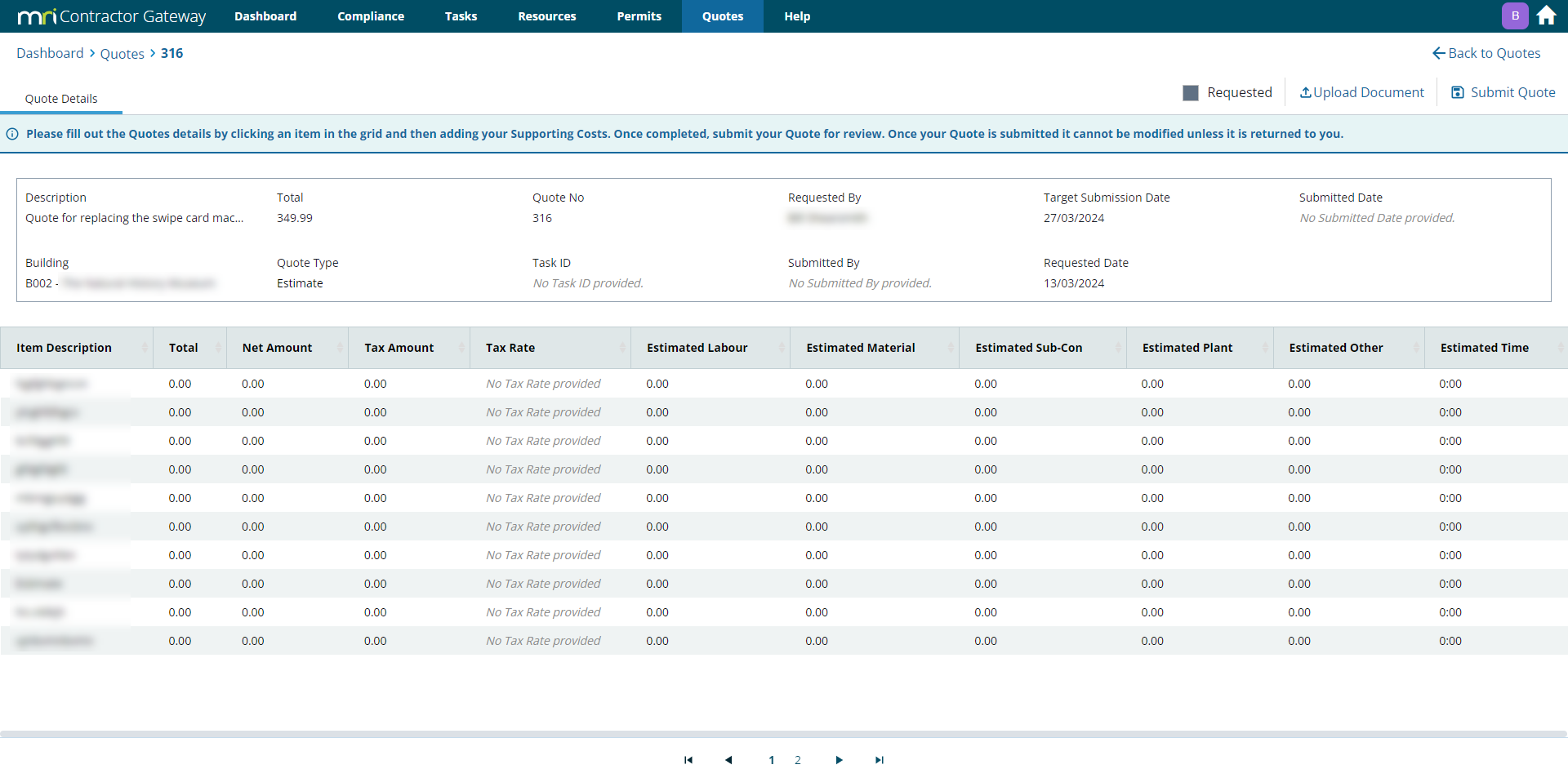
The upper part of the page contains the Requested Quote values from MRI Evolution.
The lower part of the page contains a grid of the Line Items added to the Requested Quote in MRI Evolution
Line Item Details
Clicking a Line Item opens a slide out panel, as below:
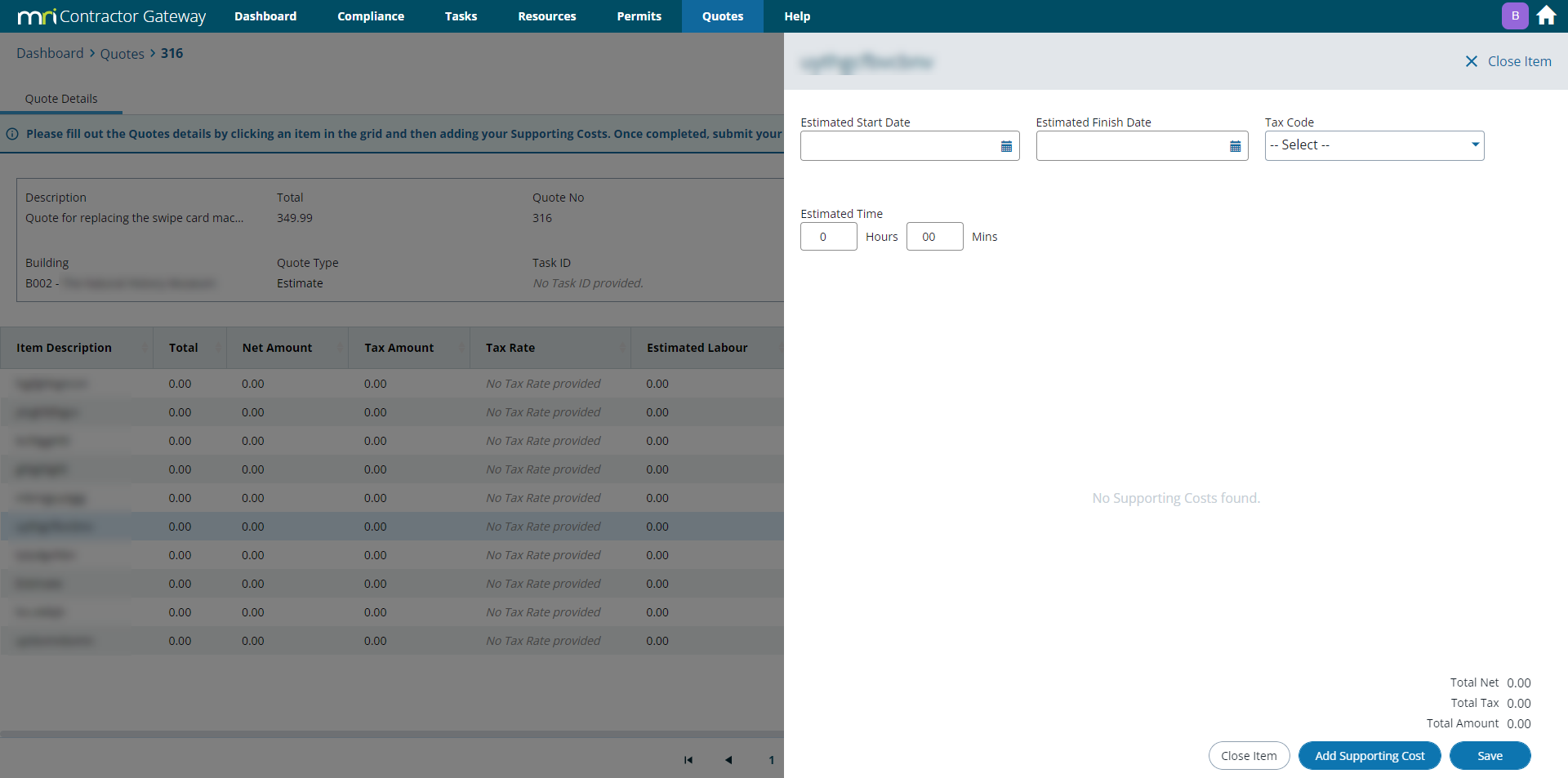
Enter values in the following fields:
-
Estimated Start Date
-
Estimated Finish Date
-
Tax Code
-
Estimated Time
Click the  button to store the above values.
Supporting Costs
Click the  button to open the Add Supporting Cost popup:
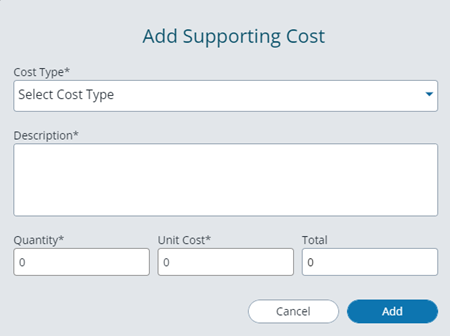
Enter values in the following fields:
-
Cost Type - mandatory
-
Description - mandatory
-
Quantity - mandatory
-
Unit Cost - mandatory
-
Total - calculated field (Quantity x Unit Cost)
Once entered, click the  button to save.
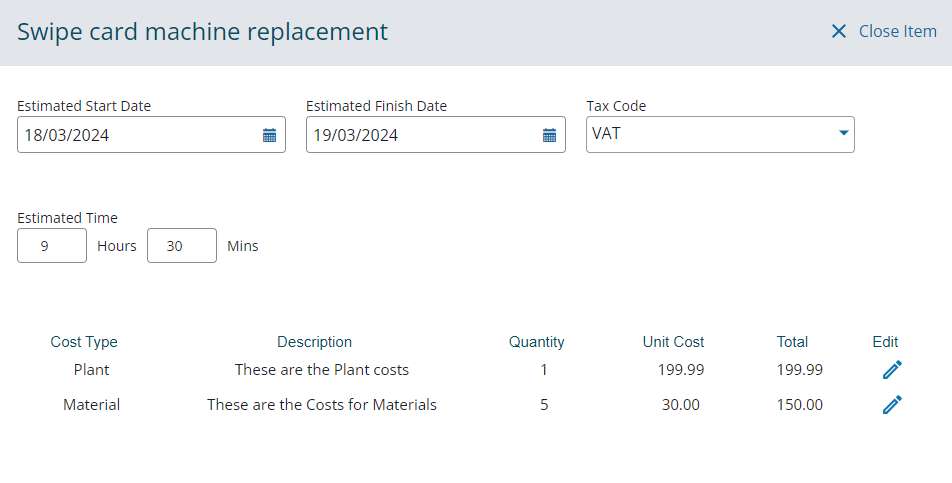
The steps above can be repeated to enter as many Supporting Costs rows as required. The screen-grab below shows two rows added to the Line Item:
Supporting Documents for Quotes
Adding Documents
A Document can be attached to a Quote record to provide additional information. The Document will be passed to MRI Evolution when the Quote is submitted.
From the Quotes grid, click on the Quote record that the Document is to be added to. The Quote's status must be Active to add a document. The Quote Details page will open.
Click the  button to open the Upload Document popup:
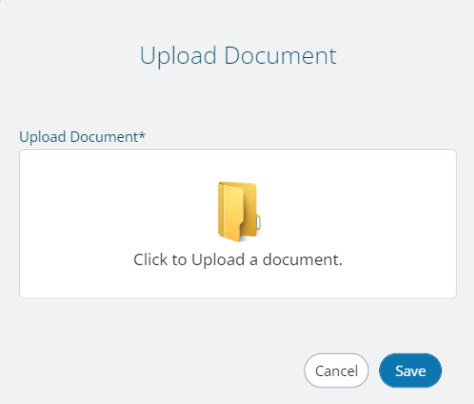
Click to open a file browser and select an appropriate file. Click to attach the file to the Quote.
A confirmation pop-up will be displayed:
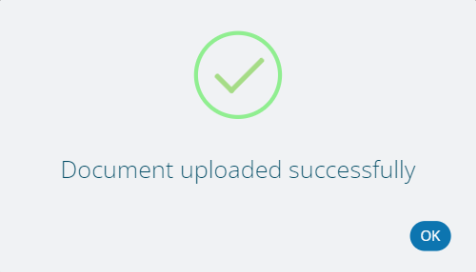
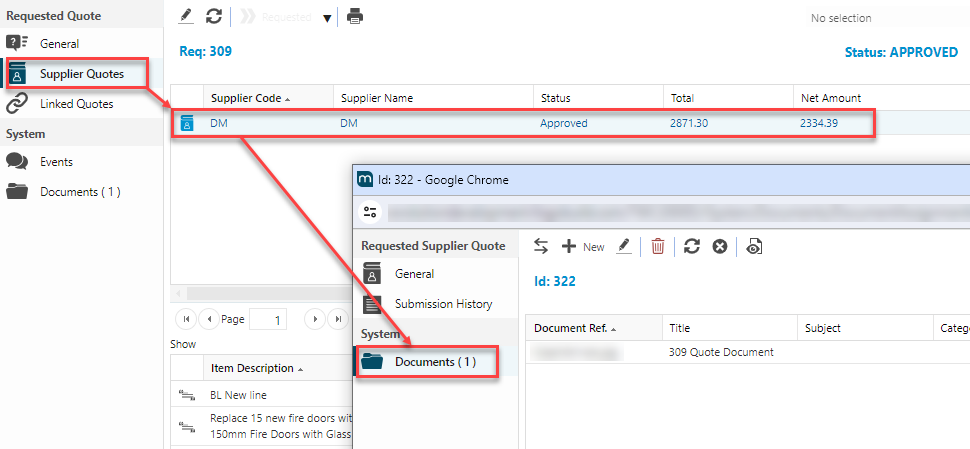
To see the Document in MRI Evolution, open the Requested Quote record, open the Supplier Quotes sub navigation, open the Supplier Quote record and open the Documents sub navigation:
Downloading Documents
Once a Document has been added to a Quote record, it can be downloaded locally.
From the Quotes grid, click on the Quote record that the Document has been added to.
Click the  button, the file will be downloaded to the user's defined download location.
Deleting Documents
Once a Document has been added to a Quote record, it can be removed up to the point the Quote has been submitted to MRI Evolution.
From the Quotes grid, click on the Quote record that the Document has been added to.
Click the  button, a confirmation po-up will be displayed:
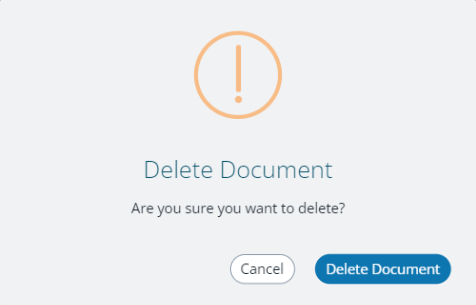
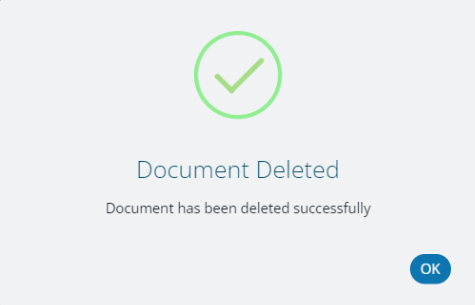
Click the  to confirm the deletion, a notification pop-up will be displayed:
Submitting a Quote to MRI Evolution for review
Once all preparation work of the Quote has been carried out, such as adding Supporting Costs and attaching a Document, the Quote can be submitted to MRI Evolution to be reviewed.
From the Quotes grid, click on the Quote record that is to be submitted to MRI Evolution. The Quote's status must be Active and the Submission Status is Requested in order to submit the Quote. The Quote Details page will open.
Click the  button and the following warning pop-up will be displayed:
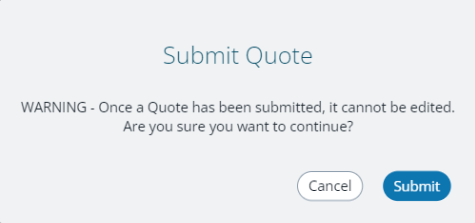
Click the  button to continue.
A confirmation pop-up will be displayed:
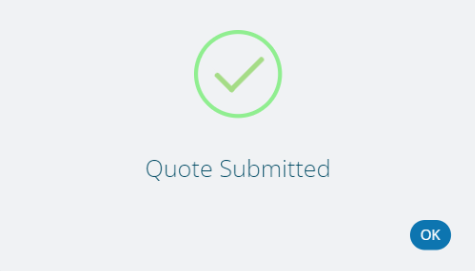
Once submitted to MRI Evolution, submitted Quotes can be updated by MRI Evolution users to one of the following:
Quote Referred
The Requested Quote has been flagged in MRI Evolution as Referred, meaning that it must be reviewed by another user before it can be Returned, Approved or Rejected.
No action can be taken in the Gateway to progress the Quote.
Quote Returned
The Requested Quote has been flagged in MRI Evolution as Returned, meaning that it must be updated in the Gateway and resubmitted.
From the Quotes grid, click on the Quote record that has been Returned.
Click the  button to view the reason the Quote was Returned, given by the MRI Evolution user, in a pop-up such as below:
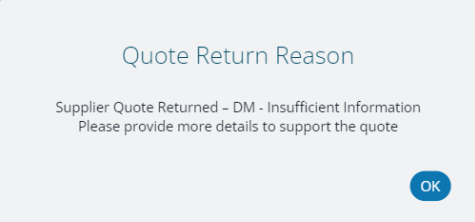
The details of the Quote can be edited in the same way as when they were previously entered, such as:
-
Adding/updating Documents
-
Editing Line Item details:
-
Estimated Start Date
-
Estimated Finish Date
-
Tax Code
-
Estimated Time
-
Editing existing Supporting Costs
-
Adding new Supporting Costs
-
The Quote can be resubmitted to MRI Evolution.
Quote Approved
The Requested Quote has been flagged in MRI Evolution as Approved.
No action can be taken in the Gateway for the Quote.
Quote Rejected
The Requested Quote has been flagged in MRI Evolution as Rejected.
From the Quotes grid, click on the Quote record that has been Rejected.
Click the button to view the reason the Quote was Rejected, given by the MRI Evolution user, in a pop-up such as below:
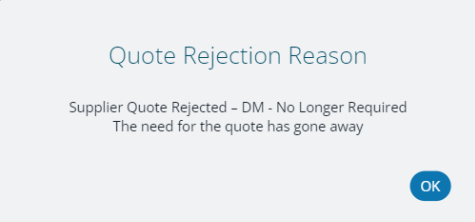
No action can be taken in the Gateway to progress the Quote.